Archibus Web Central
Changing your User Preferences and Password (My Profile command)
Control some basic behavior of Web Central by setting your user preferences using the My Profile form.
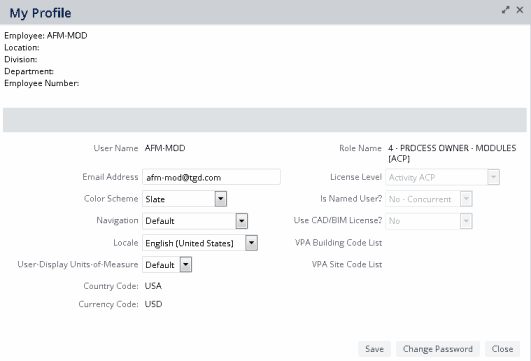
To change your user preferences
- Click the User Menu icon, located at the top of the Web Central screen. This accesses the User Menu.
- From the drop-down menu, choose My Profile.
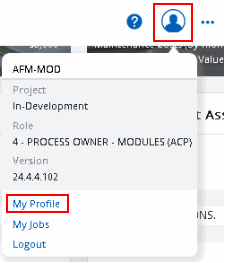
- Make your changes on the My Profile form.
Color Scheme Defines the background color scheme that appears in Web Central. Try different schemes to determine the one you most prefer.
- Impact -- Mostly monochrome and high contrast, appropriate for projectors and for users who require more contrast.
- Slate -- Fairly neutral color scheme, appropriate for most customers in most countries. Medium-large fonts, easy to read even on high resolution displays. May not be appropriate for users with low-resolution screens, such as 1366x786 or 1280x1024.
- Small Fonts -- Same colors as Slate, but has smaller fonts for users with small low-resolution screens.
If you find that the Small Font option does not completely display titles in views and forms, consider changing your screen resolution. The following are recommended:
- a screen resolution of 1280x1024 is recommended for administrative stations on which users mostly view forms and simple reports.
- a screen resolution of 1600x900 is recommended for professional workstations on which users typically view dashboard views, floor plan drawings, maps, and multiple types of data at one time.
Navigation Determines the tool for loading tasks that appears when you load Web Central.
- Default - Presents the Navigator in the sidebar navigation panel.
Locale Select a locale to set the date format, currency, language, and country you will use with Web Central. You can choose from locales that are associated with your server.
If you want to temporarily view another language when you sign in, you can choose another language on the Welcome Page language box on the Sign In page. This option lists only those locales associated with your server.
Note that this setting applies only to Web Central. Smart Client has its own locale preference to control how it displays date format, currency, language, and country.
In general, you should not change the other options listed on the My Profile form. Contact your system administrator for information on changing Email Address, Role Name, VPA Building Code List, and VPA Site Code List.
- On the My Profile form, click the Save button.
- Sign out of Web Central.
- Sign in to Web
Central.
Web Central will now operate according to your new preferences.
VAT and Multicurrency
If you have enabled the Archibus Enhanced Global Feature Set, your User Locale selection on the My Profile form determines the Default Currency presented when you enter cost transactions, and the VAT Country that the application uses to get VAT Percent for a particular cost category.
The User Display Units of Measure selection determines the unit of measure (Metric or Imperial) used to show area fields.
If you are using the Archibus Enhanced Global Feature Set and if the AbCommonResources-ConvertAreasLengthsToUserUnits application parameter value is set to True, complete the User Display Unit of Measure field:
- Select Default to have area fields display and be entered in Square Feet (ft2) if your User Local is US, and for all other locales to display in Square Meters (m2).
- Select Metric to have area fields display and be entered in Square Meters (m2).
- Select Imperial to have area fields display and be entered in Square Feet(ft2).
Change your Password
You may have permission to change your user password. If so, the My Profile form will include a Change Password button.
- Choose the Change Password button to access a form for changing your password.
- Enter your current password and then enter your new password twice.
- Click the Save button. You will return to the My Profile form.
- Click the Save button on the My Profile form.
- Click the Sign Out button.
- Sign in to Web Central with your new password.