Archibus SaaS / Foundations / Space and Moves / Space Console
Archibus SaaS / Space / Space Manager / Space Console
Space / Space Inventory / Space Manager / Space Console (non-transactional)
Space / Occupancy / Manager / Space Console (non-transactional)
Review Organization, Room Category, Room, and Employee Information (the Space Console's Details tabs)
The bottom section of the Space Console, beneath the Space mode and Employee mode sections, presents a series of tabs showing the details of employee, organization, room category, and room information.
Optionally, you can elect to also display tabs for Room Standards and Teams using the View Settings tab in the upper right corner.
Simply click each tab to toggle between them.
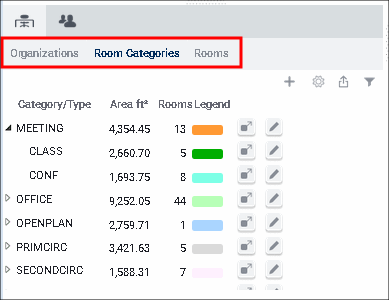
The tabs include vertical scroll bars and Next buttons so that you can access all data in the list. To minimize scrolling and paging, you may wish to use the Filter or the Smart Search Console, as described below
In addition to displaying data, the tabs offer:
- an Add New ("+") button for creating new records
- the Gear icon for changing the fields displayed in the tab
- an arrow-shaped button for exporting to Word or Excel
- a funnel-shaped button for controlling the filters
- a pencil-shaped icon for editing data
- an Assign button on the Organization tab, the Room Categories tab, and the Room Standards tab for assigning these values to rooms (This icon is located to the left of the pencil icon.)
The Employees tab offers additional features:
- filtering the list to show only those employees that are not assigned to a room.
- assigning employees to rooms.
If you have a floor plan loaded and select a record from a tab's grid, the floor plan highlights rooms of that value. For example, select the MEETING record of the Room Categories grid, and the floor plan (if loaded) highlights any rooms assigned to this room category in the color associated with the room category. See Highlight Rooms in the Floor Plan by Selecting Records.
Two-level tabs: Organization and Room Categories
Some tabs reflect a two-level hierarchy:
- The Organization tab has divisions composed of departments.
- the Room Categories tab has room categories composed of room types; for example, the Lab room category composed of Dry Labs and Wet Lab room types.
When viewing the organization and category information, you can view either the top level (division or category) or expand the list to include both levels (division-department, room category-room type). For example, in the above image, the MEETING room category has been expanded to show its component room types.
- To expand the list, select the hollow triangle button.
- To roll up the list, select the solid triangle button.
Because these tabs show two levels of data, they behave a bit differently than do the other tabs.
- They do not total the data.
- They do not offer the Smart Search console for further filtering the data, as described later in this topic.
Options for controlling the content of the Details tabs
You can control the content of the Details tabs using the options on the funnel-shaped icon, which is available from each tab.
The Apply Filters option
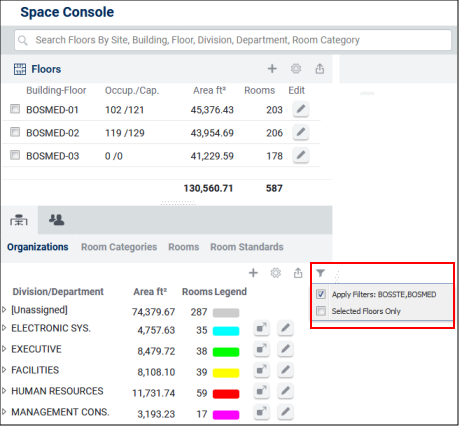
Suppose you use Advanced Search to set a filter to building BOSMED. The floor list shows all floors for this building. The Organizations, Room Categories, Rooms, and Employees tabs show records for this building. If you check the funnel-shaped icon, you see that it shows that a restriction is in effect and it reminds you of the search criteria that you entered in Advanced Search. As shown below, the Apply Filters check box is activated and shows a restriction to site BOSSTE and building BOSMED. To see all records in the various tabs, clear the Apply Filters check box.
Likewise, if you use Advanced Search to show floors with vacant rooms, the room list shows only vacant rooms and the Organizations list shows only the departments that are assigned to the vacant rooms. Similarly, if you restrict to a department, the room list includes only rooms assigned to this department and the room category list includes only the categories of rooms that are assigned to the specified department.
The Apply Filters option also reflects a floor you chose using the Search box feature. For example, if you used the Search box feature and selected floor NC05-04, the Apply Filters option will list this floor.
Clear the Apply Filters check box to remove from the lists in the Details tabs any restrictions set with the Advanced Filter option or Search box.
The Select Floors Only setting
Once you select a floor to display, the Space Console loads the floor plan. It does not further restrict the lists and show only the records for the selected floors, unless you explicitly instruct it to by choosing the Selected Floors Only option.
For example, suppose you restrict to the floor list to building BOSMED and select BOSMED-02 in the Floor list; the Room list continues to show all rooms in BOSMED. If you want to see just the rooms in BOSMED-02, you must check the Selected Floors Only checkbox. For example, with the below options, the Organizations list shows divisions that are located on BOSMED-02 because BOSMED-02 is selected in the Floors list and Selected Floors Only is also selected.

Note the following about the Selected Floors Only option. This behavior applies to all the lists in the Details tabs (Organizations, Room Categories, Rooms, Room Standards, Employees).
- After you initially search or select floors, the option will be unchecked by default for all tabs.
- Each tab’s Selected Floor Only option is independent. The Console does not apply the selection you make on one tab to the other tabs.
- If you select a floor in the Floors List, activate this option, and then choose another floor in the Floors list, the Selected Floors Only option will stay in effect for the other floors. This applies whether you open another floor plan by choosing its check box, or switch to another floor plan by clicking on the floor row.
- When you uncheck all floors, the option is cleared automatically for the active tab. Thus, if you have the option selected for only one floor and you uncheck the floor, the Console clears the option because no floors are selected. If you then check another floor, you must set the option again.
Restrictions for the Employees tab
In addition to applying the filter and determining the selected drawing's effect on the content, the Employees tab offers two additional restriction options.
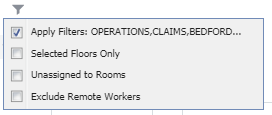
These options are:
| Option | Description |
|---|---|
| Exclude Remote Workers |
Select this option to see only on-site employees; the Always Remote? value is No |
| Unassigned to Rooms | This filter is handy for seeing those employees who are not assigned to rooms and may need to be placed. |
Find employees and rooms with Smart Search
In addition to, or instead of, using the Filter, you can limit the rooms and employees presented by the Space Console. The Rooms and Employees tabs include the Smart Search console so that you can limit the lists of employees and rooms based on search criteria you enter.
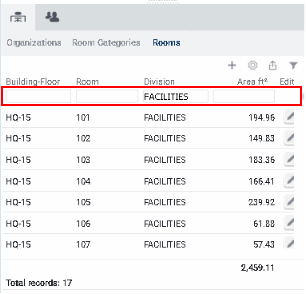
The Smart Search console is located at the top of the Rooms and Employees tabs (and Room Standards and Teams tabs, if shown). It offers entry boxes (column headers) for you to enter the criteria by which you want to search. You must type in the value by which you wish to restrict; you cannot choose the value from a list of existing values. You can enter as many fields as desired.
For example, to search for rooms of a department:
- In the Organization box at the top of the Rooms tab, type the identifying value of a division, such as FACILITIES.
- Press Enter to process the search.
- The tab displays only employees assigned to this division.
Note that if you export your employee or room data when Smart Search is in effect, Archibus will ignore the Smart Search restriction and include all the data. If you need to export the data, you will want to restrict the data using the Filter.
To use Smart Search
- To enter a search, complete one or more column headers with your search criteria and press Enter. You do not need to consider case when entering your values. The system displays the data that meets the restriction.
- To clear a restriction, click the X icon.
The Smart Search console is found in many Archibus forms. For further information on using Smart Search, including how to use partial and wildcard searches, see Restricting Data Using Smart Search.
Why Use Smart Search?
The Smart Search console has many uses within the Space Console. For example, you can:
- Further reduce a list of employees or rooms made with the Filter
For example, suppose you restrict rooms by department using the Filter, but the resulting list is quite long. Rather than use the Advanced Search form to further restrict the list, you can limit this list to rooms of a certain floor. - Search without using the Filter
You may want a list of employees that is not dependent on room location, as is a restriction made with the Filter. For example, you may want a list of employees by department. Use the Smart Search console of the Employees tab to enter the department, and the Employees tab presents all employees assigned to this department, regardless of how the employees' are associated with a department. - Enter an exact room or employee
Rather than using the Filter to find rooms or employees associated with rooms, you may find it more direct to enter the exact room number or employee name in the Smart Search console. - Reorder the employee or room data
To change the value by which the data in the Employees or Rooms tab is sorted, click the rectangle in the column header of the field you wish to sort by. The rectangle changes to a triangle to show that the screen is sorted by that column header. You can then click on the rectangle to toggle between ascending and descending order.
Next steps
You can also review and edit employee and room information from the floor plan. With this method, you make a selection of rooms from the floor plan, and Archibus displays basic information about these rooms or the employees that occupy them. With this method, you access the information by choosing rooms from a visual representation. You can select any set of rooms that you desire; you do not work with a formal filter.
For information, see:
- Edit Data Using the Space Console's Details Tabs
- Select Rooms on the Floor Plan and View/Edit their Properties
- Select Rooms on the Floor Plan and View/Edit the Properties of Occupying Employees