Real Property / US Federal Property Registry
Searching for Properties
From the Find and Manage tab of the Manage Real Property Inventory view, you can search for properties meeting the filter criteria you enter. You can search by selected data elements, and by the time frame when information for the property was last posted.
To search for properties:
- Select Real Property/US Federal Property Registry/Manage Real Property Inventory.
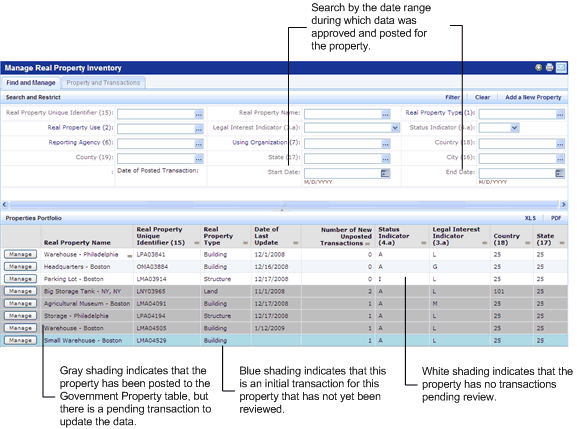
The Find and Manage tab presents the Search and Restrict Console.
- Enter search criteria and click Filter.
Note: The number in parentheses next to a filter field reflects the Data Element # assigned to it by the Federal Real Property Council. See the GSA Office of Governmentwide Policy's "2011 Guidance for Real Property Inventory Reporting."
The Properties Portfolio section lists the properties matching the filters you enter.
Note: If the initial transaction for a property has not yet been approved, the transaction appears in blue. If the data for the property has been posted, but the property has a transaction pending approval, the transaction appears in gray.
Once you locate a property, you can manage the property by:
- Viewing property details.
- Viewing transaction details for any transactions that are pending approval.
- Approving or rejecting transactions that are pending approval, if you are the Business Process Owner assigned to the security group "Government RPLM Inventory Process Owner."
- Enter proposed changes to the data for a property by adding new transactions.
- Exporting the list of properties to PDF or Excel.
The following image shows the Manage Real Property Inventory view:
See Also
Viewing Details for Transaction Pending Approval
Adding New Property to Your Inventory
Adding New Data Transactions for Existing Properties